MD Viewer OCR Translate Word Reminder Focus One Thing Web Clipper Highlight & Note Dual Subtitle FloatPiP FloatScroll






Markdown Viewer & Preview for Chrome

Markdown.
Beautifully.

Open any .md file — on your Mac, your PC or the web — and read it like a real document. With a table of contents, diagrams and dark mode built in.

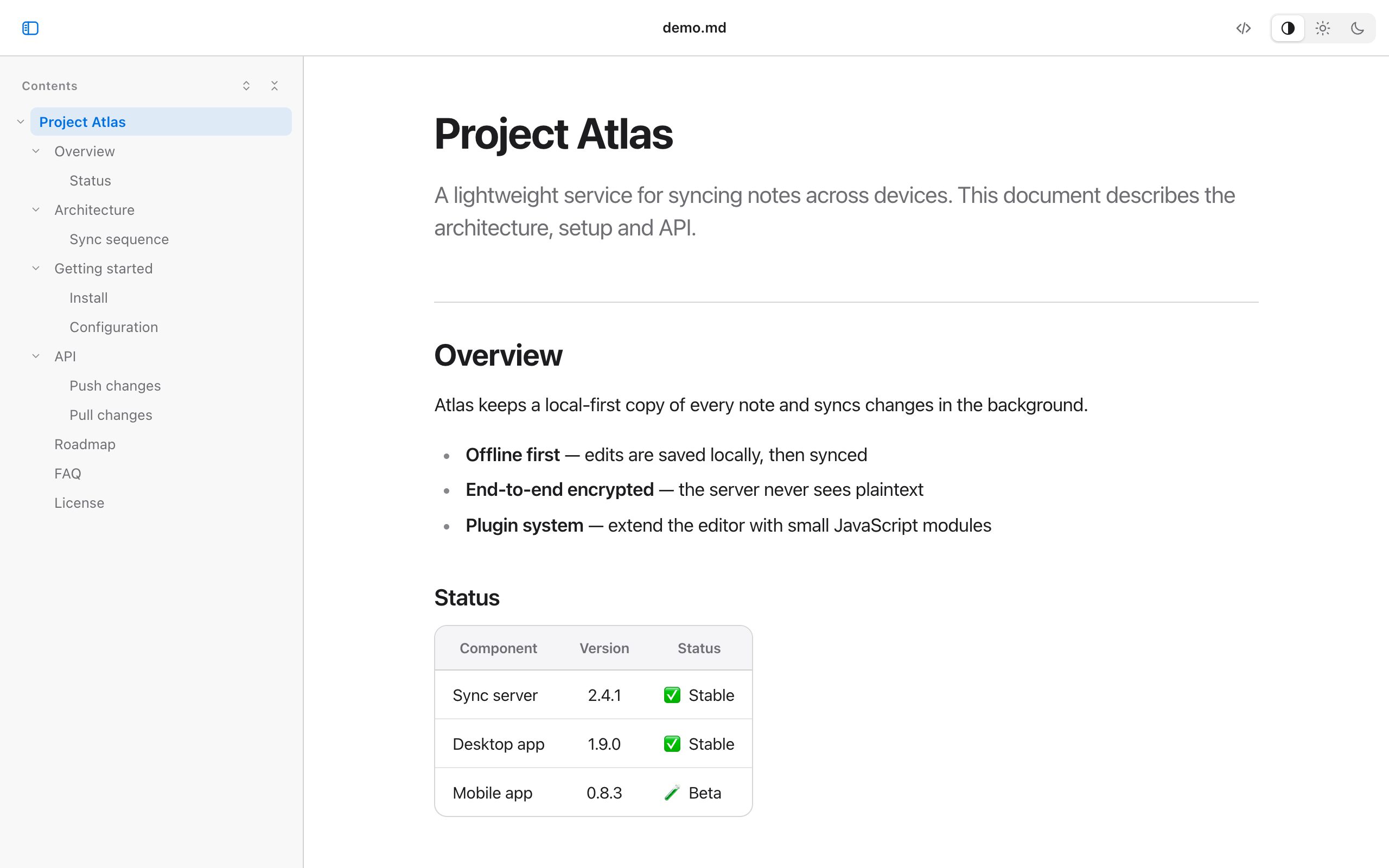
file:///Users/you/Projects/atlas/README.md
A Markdown file rendered by MD Viewer with a sidebar table of contents

Everything you need to read Markdown.

Nothing you don’t. MD Viewer stays out of the way until you open a Markdown file.

Any .md file

Local files, web links, raw GitHub URLs, or files you drop in. README, docs and notes all just work.

Table of contents

A sidebar that follows you as you scroll. Expand or collapse any section, or hide it with T.

Mermaid diagrams

Flowcharts, sequence diagrams, Gantt charts and more — drawn right in the page, in light or dark.

Beautiful code

Syntax highlighting for 30+ languages, with a one-click Copy button on every code block.

Light & dark

Follows your system, or pick a look. Tables, task lists and front matter are styled to match.

Private by design

Everything is rendered on your device. No account, no tracking, nothing uploaded. Scripts are blocked.

Folder tree

New. Local file open? Click the folder icon to browse the folder around it — expand sub-folders, go up to the parent, and jump to any Markdown file.

Switch files smoothly

New. Pick another file in the tree and it opens in place — no page reload, no flash. The tree keeps its folders open as you move around.

Wide reading

New. On big screens the document uses the full window, up to 1400 px — wide tables and code blocks finally have room.

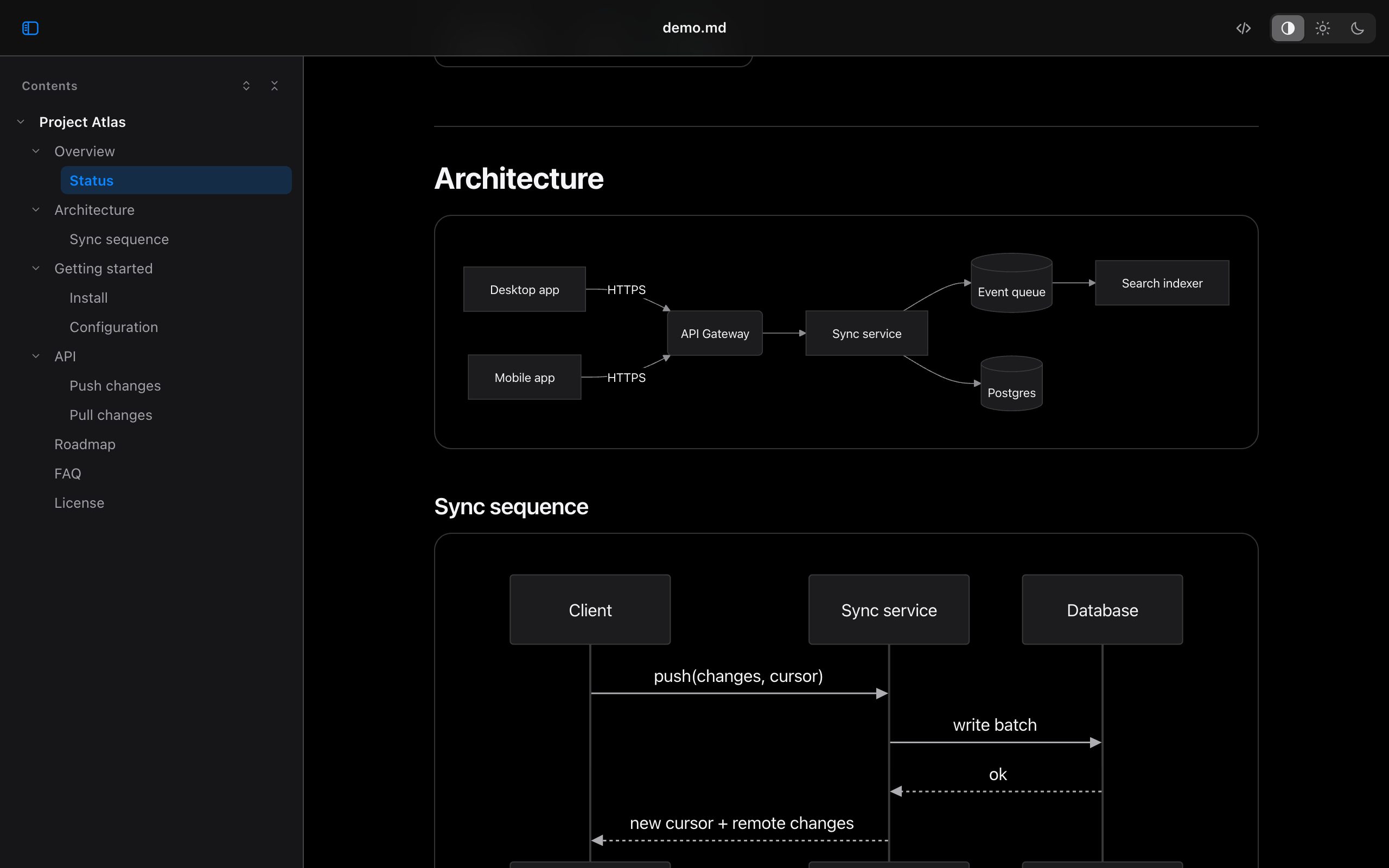
Diagrams that just work.

Write ```mermaid and see the picture — not the code.

Mermaid flowchart and sequence diagram in dark mode

Get started in a minute.

Eight short steps — from installing to reading your first file.

  1. 1

    Install MD Viewer

    1. Open MD Viewer on the Chrome Web Store.
    2. Click Add to Chrome.
    3. In the dialog, click Add extension.
    Add “MD Viewer – Markdown Viewer & Preview”?
    It can: Read and change your data on a number of websites
    CancelAdd extension
  2. 2

    Pin it to the toolbar

    1. Click the puzzle-piece icon at the top-right of Chrome.
    2. Find MD Viewer and click the pin.

    The MD Viewer icon icon now stays next to the address bar.

    example.com
    Extensions
    MD Viewer
  3. 3

    Allow local files

    Needed once, so .md files on your computer render automatically — and so the folder tree can list your files.

    1. Right-click the MD Viewer icon → Manage extension.
      (Or open the popup and click the orange Local files are off row.)
    2. Turn on Allow access to file URLs.
    3. Reload any .md tab that is already open.

    Chrome requires you to switch this on yourself — extensions can’t do it for you.

  4. 4

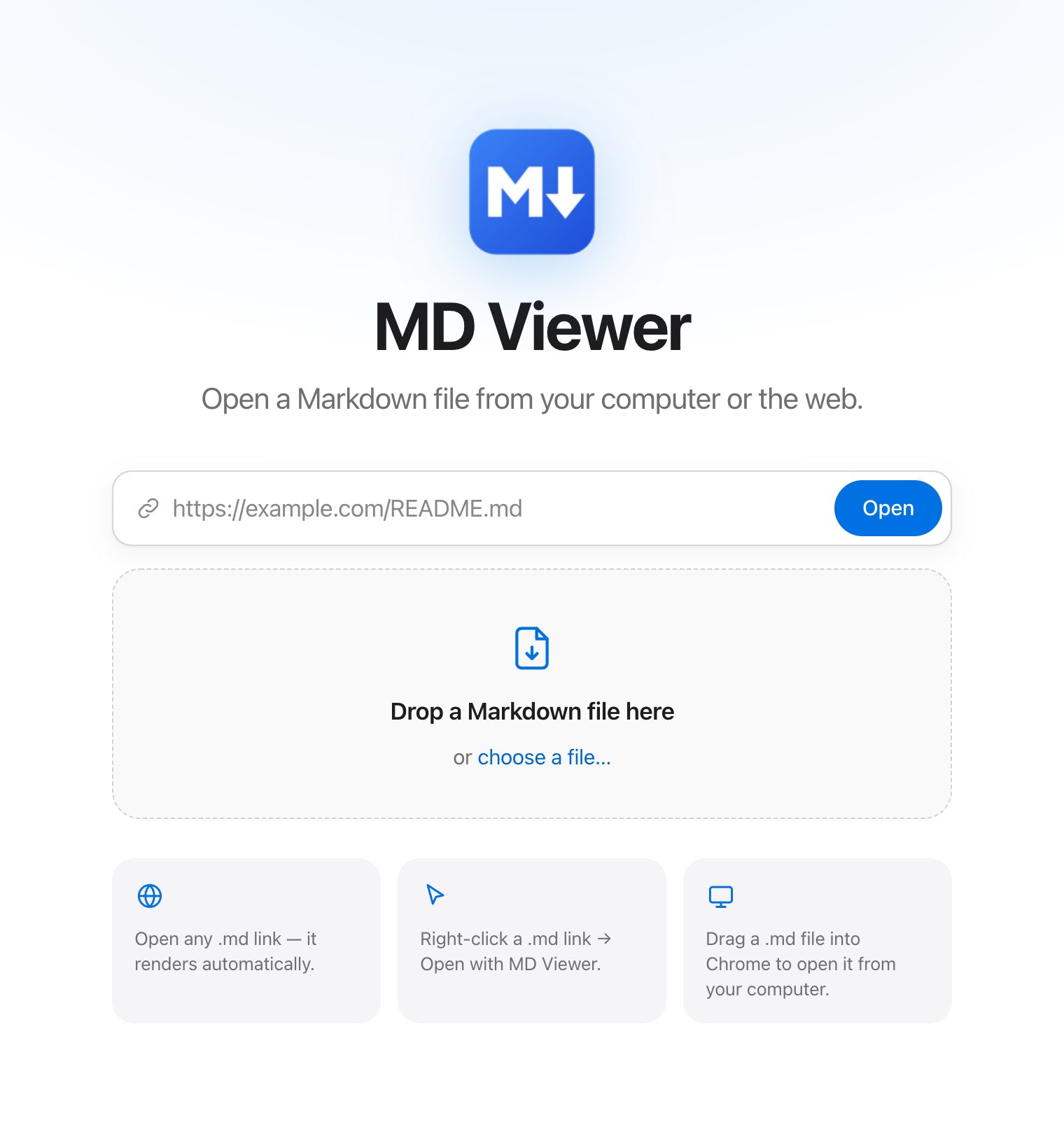
    Open a file from your computer

    Any of these works:

    • Drag a .md file onto a Chrome window or tab.
    • Press ⌘ O (Mac) or Ctrl O (Windows) and choose the file.
    • Click the MD Viewer icon → Open file from computer…, then drop or choose a file.

    Images next to the file (like ![](images/diagram.png)) load too when you open the file directly.

    MD Viewer open page with a link field and a drop zone
  5. 5

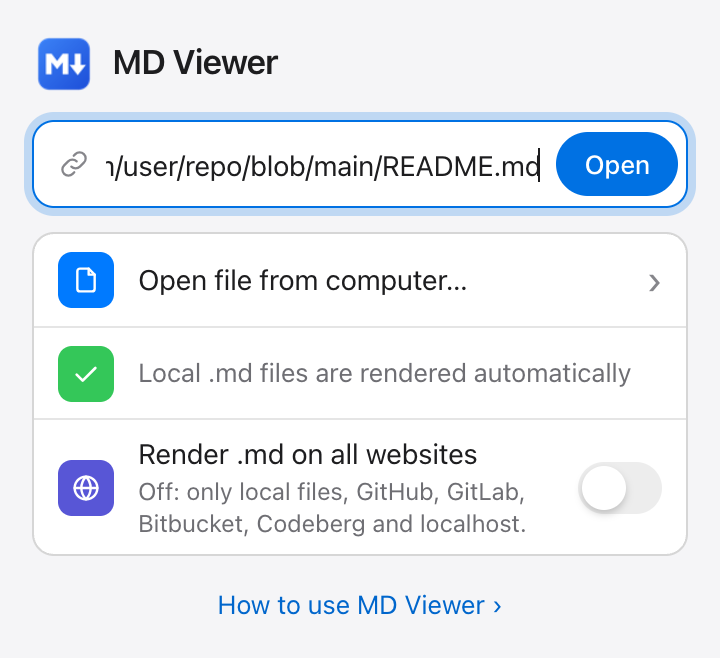
    Open a file from the web

    • Links that end in .md on GitHub (raw), Gist, GitLab, Bitbucket and Codeberg render as soon as you open them.
    • Want the same on every website? Turn on Render .md on all websites in the popup.
    • For any other link, click the MD Viewer icon, paste the URL and press Open.
    • GitHub, GitLab, Bitbucket and Gist page links are converted to the raw file for you.

    If a site blocks access, MD Viewer shows an Allow access button — for that one site only.

    MD Viewer popup with a GitHub link pasted
  6. 6

    Right-click any Markdown link

    1. Right-click a link to a .md file on any page.
    2. Choose Open with MD Viewer.

    The document opens in a new tab, ready to read.

    See the CONTRIBUTING.md guide.

    Open link in new tab
    Open link in new window
    Copy link address
    Open with MD Viewer
  7. 7

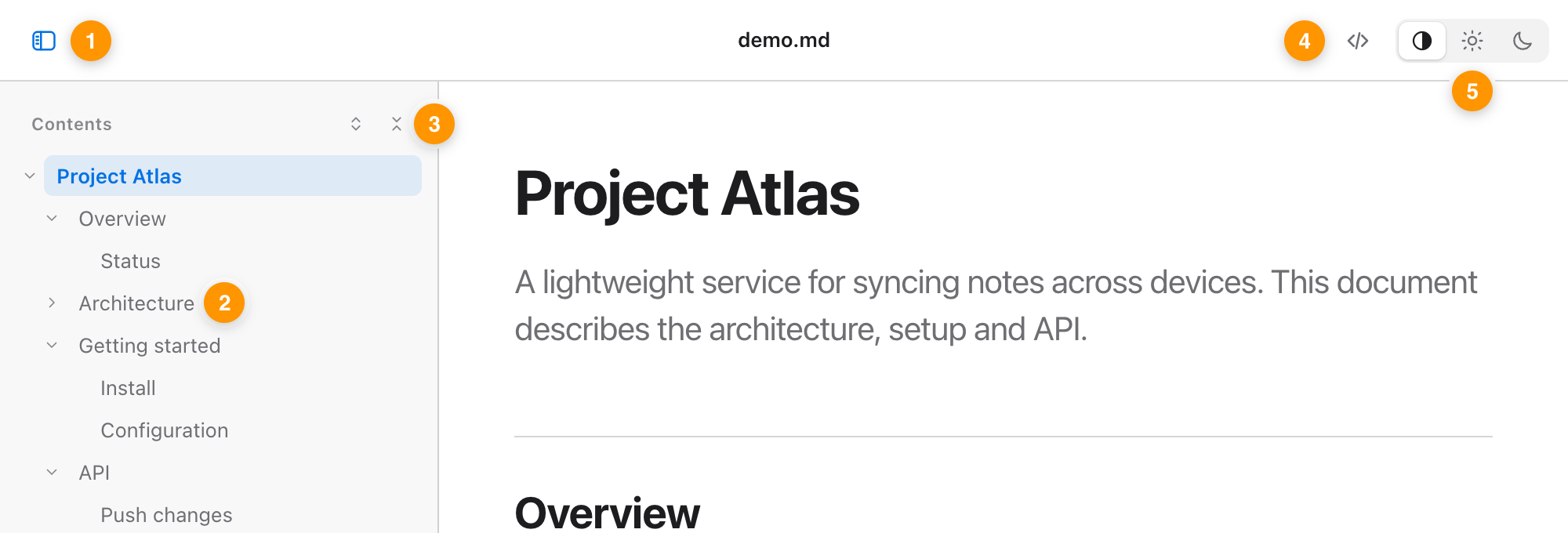
    Read and navigate

    • 1Show / hide the table of contents (T).
    • 2Click the arrow to expand or collapse a section.
    • 3Expand all / collapse all sections at once.
    • 4View source — see the raw Markdown (R).
    • 5Theme: Automatic, Light or Dark.

    Hover a heading and click # to copy a link to that section. Hover a code block to Copy it. The i icon at the far right opens this website.

    MD Viewer toolbar and sidebar with numbered callouts
  8. 8

    Browse the folder tree

    Works when you open a local file (file://).

    1. Click the folder icon next to the table-of-contents button.
    2. The sidebar shows the folder of the open file. The current file is highlighted.
    3. Click a folder to expand it, or a file to open it right away.
    4. Click the up arrow to move to the parent folder and keep exploring.

    Only folders and Markdown files are listed. The tree stays as you left it while you move between files.

Keyboard shortcuts.

T

Show or hide the table of contents

R

Switch between rendered view and source

Esc

Close the sidebar on small windows

Questions? Answers.

How do I browse other files in the same folder?

Open a local .md file, then click the folder icon next to the table-of-contents button. You get a tree of the folder around the file; click a folder to expand it, the up arrow to go to the parent, or a file to open it. It needs Allow access to file URLs (step 3) and only works for files on your computer.

The address bar still shows the first file after I switch files.

Chrome doesn’t let a page change its address to a different local file, so the address bar may keep the first file’s path while the content, title and highlight show the file you picked. Reloading (F5) reopens the file named in the address bar.

My local .md file still shows plain text.

Turn on Allow access to file URLs (step 3), then reload the tab. Chrome keeps this off for every extension until you switch it on.

A GitHub page ending in .md isn’t changed. Why?

That page is GitHub’s own website, not the Markdown file itself — MD Viewer leaves regular web pages alone. Paste the link into the MD Viewer popup (it is converted to the raw file automatically), or click Raw on GitHub.

Which websites does MD Viewer run on?

Out of the box, only on Markdown files from your computer and from GitHub (raw), Gist, GitLab, Bitbucket, Codeberg and localhost — that is the “number of websites” Chrome mentions when you install. Want .md links on any other site to render too? Open the popup and turn on Render .md on all websites; Chrome asks for permission first, and you can turn it off at any time. Pasting a URL in the popup works for every site either way.

Can I edit Markdown with MD Viewer?

MD Viewer is a viewer and previewer. Edit the file in your favourite editor, then reload the tab to see the updated preview.

Does MD Viewer upload my files?

No. Files are read and rendered entirely in your browser. There is no account, no analytics and no server. See the privacy policy.

Which Markdown features are supported?

GitHub-style Markdown: headings, lists, task lists, tables, code blocks with highlighting, block quotes, images, links, strikethrough, YAML front matter and Mermaid diagrams. Embedded HTML is supported too, with scripts removed for safety.